FAQs
FAQs
• Q: What are the system requirements and installation procedures to run kSpectra?
kSpectra can be run on Mac OS X 10.4 and higher. The latest build is distributed by compressed disk image (34 Mb) that you can download from our webstore; it is mounted in the Finder automatically. Installation is then completed simply by dragging kSpectra Toolkit folder (~51 Mb including examples) to the hard drive!
kSpectra comes as a Universal Binary, and it will run in 64-bit mode on any Mac with 64-bit Intel processor (Intel Core 2 Duo or Intel Quad-Core Xeon) and Mac OS X 10.5 or 10.6 installed; on PowerPC and 32-bit Intel processors (Intel Core and Intel Core Duo) it will run in 32-bit only. Running in 64-bit mode allows to process data larger then 4Gb in size and take advantage of more than 4Gb RAM memory (see below)!

•Q: What data formats are supported by kSpectra?
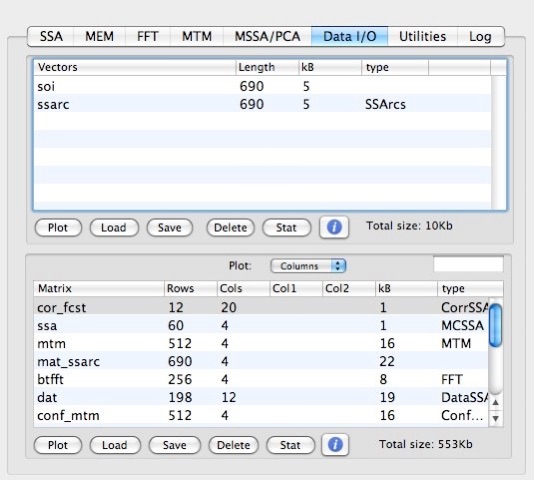
kSpectra supports data I/O in multi-column ASCII, CSV (comma-separated-values) and Matlab formats. Input files should contain only numeric data and missing values should be masked with "NaN" (case insensitive). The time series can be imported/exported by using the Load/Save buttons in Vectors (Matrices) tables of Data I/O, or simply by Drag-and-Drop of the file to the relevant table.

User can also open/save all data and plots in a single project file with “.tkt” extension. See more on Data I/O in the User’s Guide.
• Q: What is License Activation?
kSpectra uses eSellerate's (http://www.esellerate.net) product activation feature to prevent using software with the same serial number on number of machines that exceed permitted number. For every purchased copy two activations are allowed. For example, in addition to a primary computer, user can install and activate the serial number on a home computer or portable (laptop). It is up to a user to decide how to utilize available activations.
Q. Is it safe?
Absolutely. kSpectra Toolkit has been granted 100% CLEAN award by Softpedia.
• Q:How do I activate my license?
The customer can obtain a serial number for a regular license by using Purchase menu item of demo copy:

In this case activation is done automatically. Customers can also use our webstore (see above) to buy a regular license, and then use obtained serial number to activate it with Registration Info panel:

In the event that multiple licenses are purchased on a single order, only one unique serial number will be issued with two activations per one license purchased. By using Deactivate button on Registration Info panel users have the ability to deactivate kSpectra on one machine and reactivate it on another.
•Q: What is a demo version?
- It is fully functional for data in examples included with a demo version.
-For custom data SSA Reconstruction/Prediction ,Gap-Filling and MTM Reconstruction are disabled, as well as related Scripting commands and Automator actions.
- All Plots display "Demo" logo.
- Saving projects and "Save" operations in Data I/O tool are disabled.
•Q: What is “Try for 30 days” feature?
This menu option will allow to use fully functional application with custom data during free one month subscription. At any time during the trial subscription user can purchase and activate a regular license either from our webstore, or from within application by using menu Purchase option (see above). The trial serial number will expire after one month. Please contact sales@spectraworks.com for more information.
• Q: How can I use Automator Actions and AppleScript in kSpectra?
Automator Actions allow to create Workflows consisting of repetitive tasks. With one click of a mouse users can load data, analyze it, plot the results, save and print them. AppleScript power users may find that using kSpectra Scripting directly can be more useful for intricate automative tasks.
To build a WorkFlow just start Automator, and look for Actions in the Library under kSpectra heading. Simply drag-and-drop these Actions to the right column, which is a field for constructing Workflows, and combine them with Actions from other applications, if necessary. Actions have input and output type that usually should match each other in the workflow. kSpectra actions use two specific types Data and Spectra, as well as system common File/Folders and Text.
Please see WorkFlow examples included in a demo version and User’s Guide for more information.
| ©2004-2010 by SpectraWorks. All rights reserved.|